Configuring the Terminal
As I daily use the (windows) terminal for various reasons I will describe my preferred setup.
NOTE: The keybindings I have setup refers to the default SE keyboard layout. And I am using a 34” widescreen.
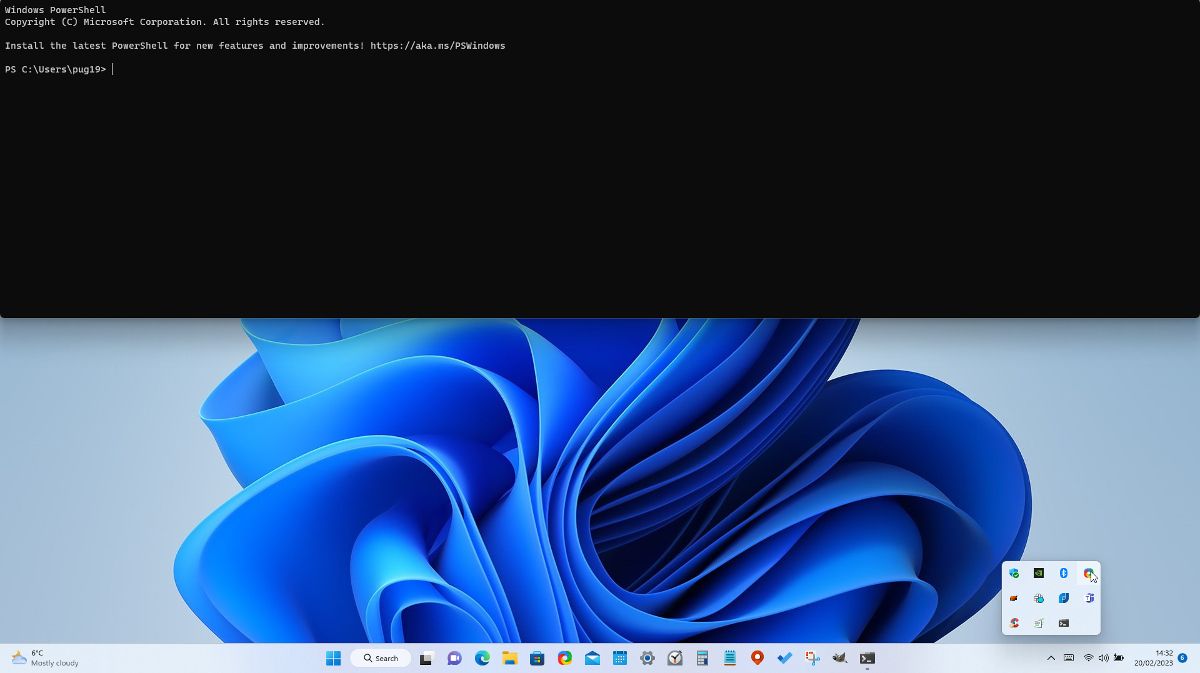
Quake mode
I have the keybinding for toggle the Quake window to Ctrl+§ (Image of quake window)
This to get to a terminal without any “alt-tabbing”, which kan be a nuisance when having more than two applications running.
Configured via Setting UI, which corresponds to the following
actions:
    [
        ...
        {
            "command":
            {
                "action": "quakeMode"
            },
            "keys": "ctrl+\u00a7"
        }
    ]
Add Git Bash
After installing git I can add the git-bash to terminal:
https://www.commandlinewizardry.com/post/how-to-add-git-bash-to-windows-terminal
Configuring the multi pane
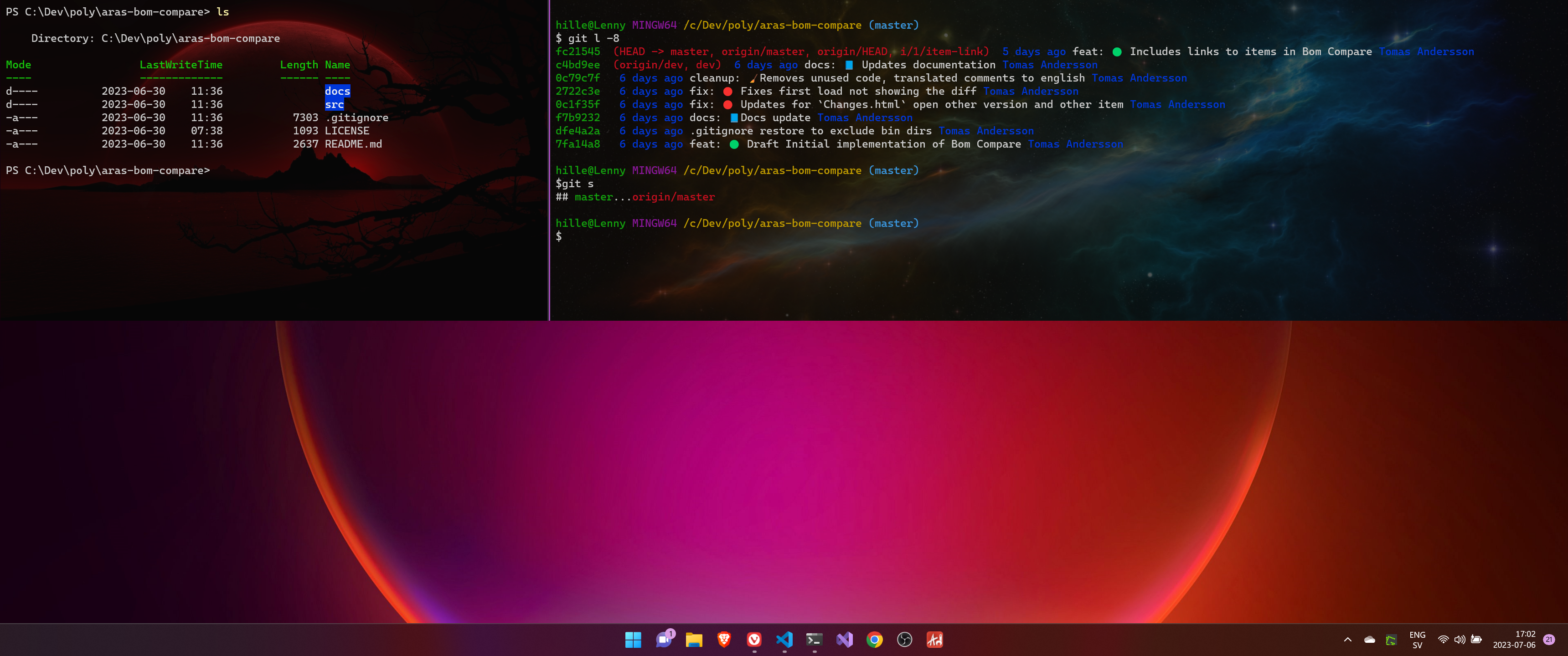
I have the cross platform powershell as the default terminal, which I usually run in quake mode.
I have configured Ctrl+G to open a new split pane (vertical) git bash
"actions":
    [
        { "keys": ["ctrl+g"], "command": { "action": "splitPane", "split": "vertical", "profile": "Git Bash" } },
    ...
    // Other configurations
Backgrounds
And some image backgrounds.
    ...
    "tabTitle": "Git Bash",
    "backgroundImage": "https://eskipaper.com/images/cool-space-wallpaper-4.jpg",
    "backgroundImageOpacity": 0.3
    ...